Adfactor updates — 2026-10-09
Chat now runs a requested Google Ads lookup before replying, fixing cases where the lookup was skipped and the answer ended empty. Workspace admins can add a service-account key, discover the Google Ads accounts it can access, and add those accounts to the workspace. GPT-6 Sol, GPT-6 Luna, and GPT-6.1 Sol are available in the Chat and Monitoring model selectors. Google Ads analysis started by Chat now uses the model configured for that Chat throughout the investigation. Newly connected Google Ads accounts import their campaigns, and opening a campaign scope refreshes the available list. Choose a group of Google Ads campaigns for one Monitoring agent to analyze.
Chat completes Google Ads lookups
Chat now runs a requested Google Ads data lookup before replying. This fixes cases where the lookup was skipped and the answer ended with an empty message.
Connect Google Ads service accounts
Workspace admins can now connect a Google Ads service account from Settings → Google Ads. Add its key, confirm the access grant, and Adfactor will look for accounts the service account can reach. Discovered accounts appear in the workspace's account picker, and you can rerun discovery after granting access. Existing Google OAuth connections are unchanged.
Choose from more GPT-6 models
You can now select GPT-6 Sol, GPT-6 Luna, or GPT-6.1 Sol for Chat and Monitoring. Each model offers the reasoning options it supports.
Chat keeps your chosen model during analysis
When Chat needs additional analysis to answer a Google Ads question, it now keeps using the model configured for that Chat, including during follow-up analysis. Changing the Chat's model later does not alter an investigation that is already running.
Use synced campaigns in Monitoring
When you connect a Google Ads account, Adfactor now imports its campaigns so you can choose one when setting up Monitoring. Opening a campaign scope refreshes the list from Google Ads and excludes campaigns marked removed, while keeping existing saved scopes intact.
Monitor multiple campaigns with one agent
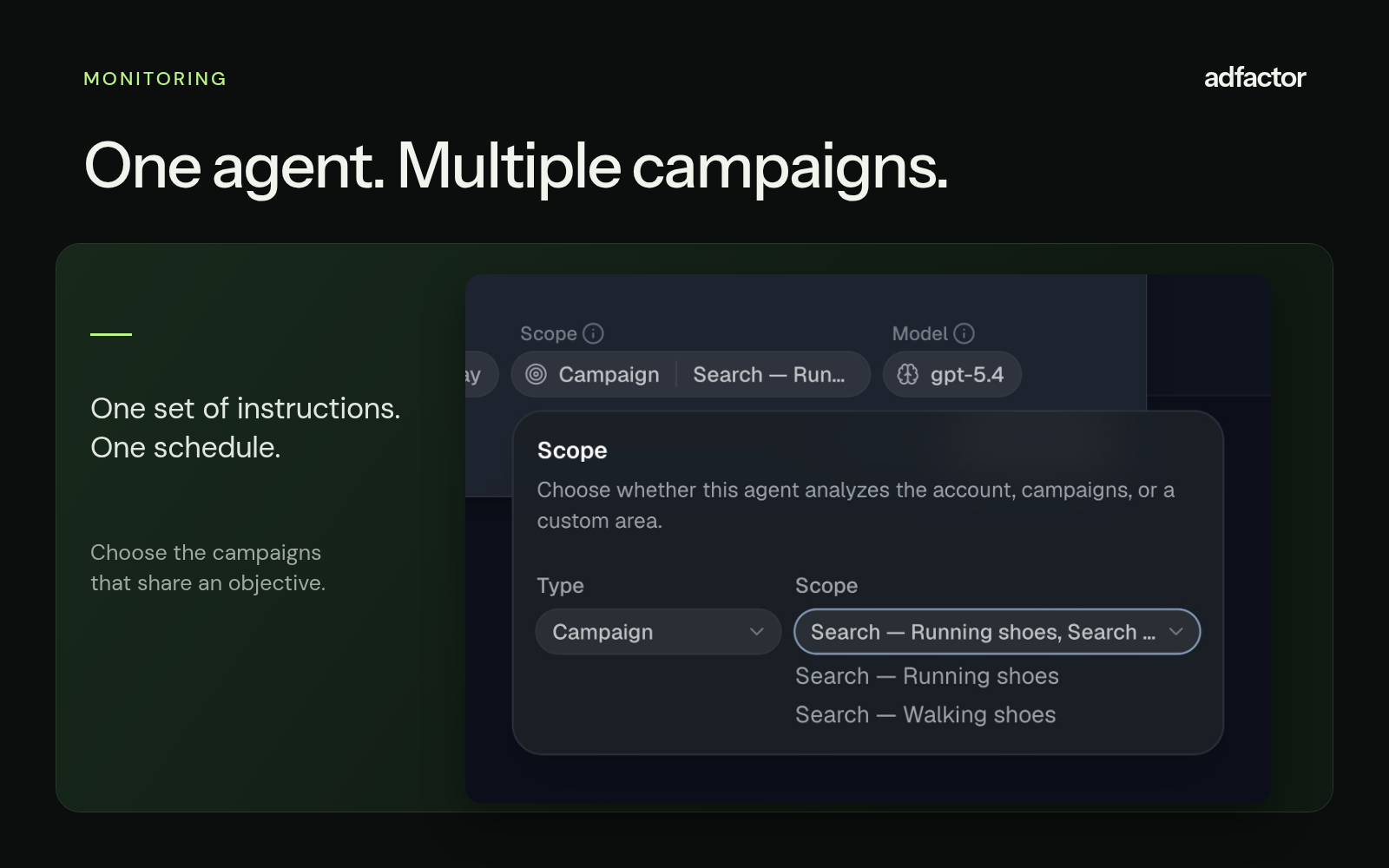
You can now give a Monitoring agent a group of campaigns to watch. Previously, you could select one campaign or the entire account. Now you can monitor the campaigns that share an objective with one set of instructions and one schedule.
Choose the campaigns you want to watch
Create or edit a Monitoring agent, open its scope settings, and choose Campaign. Search for and select one or more campaigns from your connected Google Ads account. Your selections appear below the picker, so you can review the group before saving.
You can also add campaigns to an existing agent. Agents already watching a single campaign keep their current selection.
Keep the analysis focused
The agent's Google Ads queries and supporting evidence stay within the campaigns you select. For example, you can watch the campaigns for one product without including the rest of the account in that agent's analysis.